- Product

- Pricing
- Affiliate Program
- Developers
- Resource
 EN
EN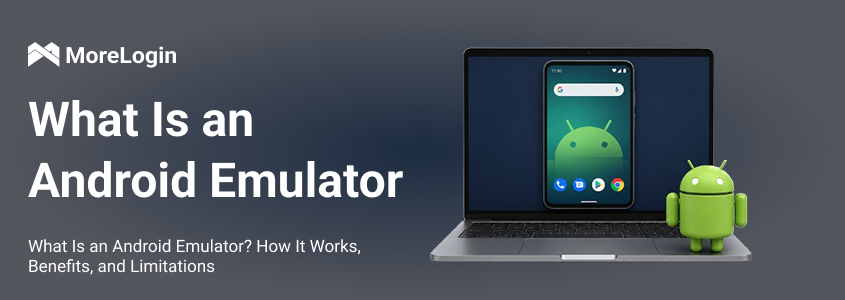
What is an Android Emulator? It is a software application that lets a computer run Android apps without using a physical Android phone. Instead of opening an app on real mobile hardware, the emulator creates a virtual Android device on a PC or Mac.
This local setup is useful for app testing, debugging, mobile game access, and short-term Android workflows. Developers can test different Android versions, screen sizes, and device settings without buying every phone model. Testers can quickly install APK files, check app behavior, and reproduce bugs in a controlled environment. In contrast, native Android environments run directly on hardware, providing a more seamless and integrated experience with better performance compared to emulators.
That is why some users now compare local emulators with cloud-based Android environments. If the goal is simple testing, an emulator is still practical. If the goal is persistent mobile operations, multi-account workflows, team access, or cloud automation, MoreLogin Cloud Phone may be a better fit.
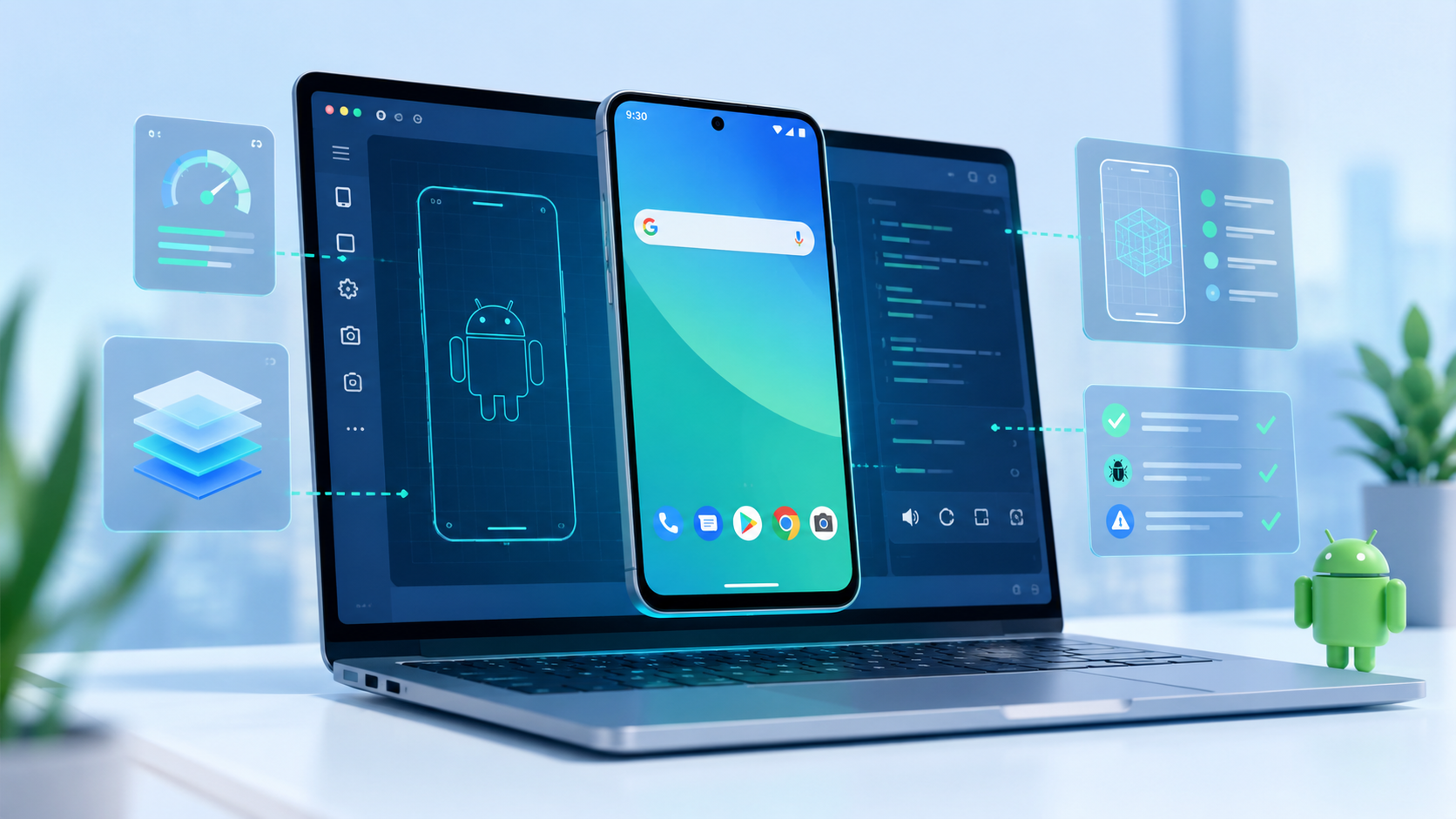
What is an Android Emulator in simple terms? It is a virtual mobile device emulator—software that recreates a virtual mobile device inside a computer for development and testing purposes. It provides a virtual Android operating system, virtual storage, screen controls, app installation, and simulated device settings.
The android emulator meaning is not “a real phone inside your computer.” It is closer to a controlled Android test environment. It imitates many parts of a mobile device, but it still runs on desktop hardware.
A typical Android emulator can let users run and test Android applications, as well as:
Install and run Android apps
Test APK files
Choose Android versions or API levels
Set screen size and resolution
Simulate basic location or sensor behavior
Use keyboard and mouse input
Debug app behavior during development
Its key features include the ability to simulate hardware and software environments, support for multiple Android versions, and tools for debugging and automation.
The official Android Studio Emulator, for example, uses Android Virtual Device, or AVD, configurations. An AVD lets developers define the virtual device profile, such as phone type, screen size, Android version, system image, storage, and startup settings. The emulator replicates the Android system stack, including the Linux kernel, native libraries, Dalvik VM, and core Android packages, to provide a comprehensive environment for running and customizing virtual Android devices.
This makes Android emulators useful for testing. A developer can check whether an app works on Android 12, Android 13, or Android 14 without switching physical phones. A QA tester can reproduce a bug in a clean virtual device. A gamer can open a mobile game on a larger screen with keyboard mapping.
Still, an emulator is not the same as a physical Android device. It can imitate many device behaviors, but it cannot fully reproduce real hardware signals, battery behavior, touch response, mobile network conditions, or manufacturer-specific system details.
To understand how does android emulator work, think of it as a layer between Android apps and your computer hardware. Android emulators work by virtualizing both hardware and software environments, allowing your computer to simulate a complete mobile device platform.
When you start an emulator, it creates a virtual Android device. This virtual device has an Android system image, storage space, screen settings, app data, and simulated hardware features. System images provide the necessary code for different Android OS versions and hardware architectures, enabling the emulator to accurately replicate various device environments. When an Android app runs inside it, the emulator translates the app’s requests so they can be handled by the host computer.
In practice:
The emulator uses the computer’s CPU to process Android system and app tasks.
It uses local RAM to keep the virtual device running.
It stores app data, cache, and system files on the computer’s disk.
It renders the Android screen through the computer’s graphics resources.
It routes network access through the host computer’s connection.
It maps mouse and keyboard actions into touch, swipe, and typing actions.
Many Android emulators are built around QEMU, short for Quick Emulator. QEMU can mimic guest device hardware and run a guest operating system on a host machine, enabling the emulator to replicate different OS and processor architectures. In Android emulation, this means the emulator can run an Android system image on a PC or Mac.
The difficult part is CPU architecture. Many Android devices use ARM-based processors, while most desktop computers use x86 or x86-64 architecture. The emulator uses dynamic binary translation to convert device machine code into code compatible with the host processor architecture, ensuring accurate simulation and compatibility across different hardware environments. If the emulator has to translate instructions between different architectures, performance becomes slower.
That is where hardware-assisted virtualization helps.
Virtualization technology allows the emulator to use the host CPU more directly when the virtual Android system and the computer architecture are compatible. Android emulators can also run inside virtual machines to further improve performance and flexibility. On Windows, this may involve Hyper-V, Windows Hypervisor Platform, or older Intel HAXM setups, which often require an Intel CPU with virtualization support (Intel VT). On Linux, KVM—a kernel based virtual machine solution—is commonly used to enable hardware-accelerated virtualization. On Mac OS, Apple’s hypervisor framework or specific kernel extensions like Intel HAXM may be required to achieve VM acceleration and compatibility.
With hardware acceleration enabled, the emulator does not need to translate every instruction in the slowest possible way. It can run the virtual device closer to native CPU speed, especially when the development machine is properly configured as the host environment for running and testing Android emulators.
That is why many emulator setup guides tell users to enable VT-x, AMD-V, or hardware acceleration, and to check system compatibility and BIOS settings for virtualization extensions. Without it, booting and running an emulator can feel painfully slow.
It is also important to match the emulator's API level—such as Android 4.0.3 (API Level 15) or higher—to ensure compatibility with graphics acceleration and virtualization features. A virtual Android device still needs RAM, storage, CPU time, and graphics resources, with the graphics processing unit (GPU) playing a key role in improving emulator screen rendering performance. When users run several emulator instances at once, all of them compete for the same local machine.
This is the core limitation of local emulation: it is flexible for testing, but it is not built for unlimited scaling.
An Android emulator is useful when the task is local, controlled, and temporary. It gives users quick access to Android apps without preparing a physical device.
Common use cases include:
App testing during development
APK installation and debugging
Checking UI layout across screen sizes
Testing different Android versions
Mobile game access on a larger screen
Basic Android automation tests
Training and product demos
Temporary app access from a desktop
Light multi-account testing
Testing app running and behavior in different scenarios
Emulators can simulate physical sensors and touch screen interactions, allowing comprehensive app testing for features that rely on accelerometers or other device sensors. They also simulate physical conditions such as GPS location, device rotation, battery levels, and varying network speeds for more realistic testing.
For developers, the main value is speed. They can build an app, run it in an emulator, inspect logs, adjust code, and test again. This is much faster than installing the app on several physical phones every time.
For QA teams, emulators help with repeatable testing. A virtual device can be reset, duplicated, or configured with specific settings. This is useful for early-stage checks before testing on real devices.
For ordinary users, emulators are often used to play games, especially android games, on a computer. The larger screen and keyboard controls can make some apps and games easier to use. Gaming emulators like BlueStacks and Nox are tailored for performance and user experience, allowing players to play games and enjoy mobile games on larger screens with keyboard and mouse controls.
The problem starts when users expect an emulator to behave like a full mobile infrastructure. That is where performance, hardware simulation, and scaling limits become obvious.
Installing applications on an android emulator is straightforward and flexible, supporting various workflows for developers and testers.
Using Android Debug Bridge (ADB): The ADB utility, included with the android sdk tools, allows you to install APK files directly onto a running emulator instance from the command line. This is especially useful for rapid app deployment during development or automated testing.
Drag and Drop: Most emulators, including the Android Studio Emulator, support installing apps by simply dragging and dropping APK files onto the emulator window. This quick method is ideal for manual testing or trying out new builds.
App State and Data Management: The emulator preserves installed applications and their state data across restarts by storing them in a user-data disk partition. If you need to reset the emulator to a clean state, you can start it with the ``` -wipe-data
The biggest benefit of an Android emulator is that it is a cost-effective solution for developers, allowing them to test applications on a wide array of simulated hardware configurations without the expense of purchasing multiple physical devices. Users do not need to buy multiple physical phones just to check basic app behavior.
It also saves time. A developer can create a virtual device, choose an Android OS version, install an app, and start testing within one workstation. For many early development tasks, that is enough, and emulators support multiple Android OS versions to ensure app compatibility across different devices and system updates.
Key benefits include:
No need to buy physical phones for basic testing
Easy access to different Android OS versions
Configurable screen sizes and device profiles
Quick APK installation
Useful debugging and log inspection
Controlled testing environment
Faster reset compared with a physical device
Convenient for developers, testers, and gamers
Lower cost for short-term workflows
Tailored to the needs of their target market, such as developers, testers, and gamers
Another benefit is consistency. If a tester needs to reproduce the same condition, a virtual device can be configured and reset more easily than a real phone. This helps with debugging and QA workflows.
Emulators can also simulate some conditions, such as screen rotation, location, network latency, or basic sensor input. This does not replace real-device testing, but it helps teams catch obvious issues earlier.
Android emulators are becoming heavier because the apps and environments they need to run are becoming heavier.
Older Android apps were often simpler. Today, many apps include video feeds, push notifications, background sync, advanced animations, embedded browsers, location behavior, anti-fraud checks, and larger media assets. These features require more CPU, memory, graphics, and storage.
The Android system itself has also grown. Newer Android versions require more resources than older versions. A modern virtual device may need several gigabytes of disk space and a meaningful amount of RAM just to run smoothly.
Multi-instance use makes this worse. Running one emulator is like running one virtual Android device. Running five means the computer is carrying five separate Android environments. Each one has its own system files, app data, cache, memory usage, and screen rendering.
There is also a device-signal problem. Some apps rely on hardware, sensor, network, or system-level signals. The more an emulator tries to simulate, the more overhead it can create. Even then, some behavior still does not match real mobile hardware.
So the issue is not just “emulators are poorly optimized.” The deeper issue is that local desktops were not designed to run many persistent Android environments at the same time. These are some of the key emulator limitations that affect performance, compatibility, and scalability.
Android emulators are practical tools, but they have limits. These limits matter more when the task moves from testing to daily operation.
A single Android emulator may run well on a strong computer. Multiple instances are different.
Each instance consumes CPU, RAM, storage, and graphics resources. When several virtual devices run together, users may see slow startup, app lag, frozen screens, high disk usage, or crashes.
This makes scaling difficult. The more virtual devices you add, the more your local computer becomes the bottleneck.
An Android emulator can simulate device behavior, but it cannot fully reproduce a real phone.
Some gaps include:
Battery behavior
Real mobile network changes
GPS movement accuracy
Camera behavior
Fingerprint or biometric hardware
NFC and some device-specific sensors
Touch pressure and gesture response
Manufacturer-specific system behavior
For app development, some of these gaps are acceptable. For mobile account operations or long-running workflows, they can create instability or inaccurate results.
Local emulators are not ideal for long-term multi-account operations because they depend too much on one local machine.
If the computer shuts down, the workflow stops. If the system runs out of storage, the emulator may fail to start. If too many instances run together, all environments slow down. If the local network is unstable, every session is affected.
This becomes difficult to manage when users need persistent sessions, isolated environments, team access, or scheduled automation. A local emulator can handle experiments. It is less suitable as the core infrastructure for ongoing mobile workflows.
An Android emulator and a Cloud Phone both give users access to Android environments, but they are built around different operating models.
An Android emulator runs locally on a computer. A Cloud Phone runs in a cloud-based Android environment and is accessed remotely. This difference affects resource usage, scalability, stability, and workflow design.
For a deeper comparison, this guide on cloud phone vs emulator explains the practical difference between local virtual Android devices and cloud-based mobile environments.
The point is not that one is always better. The better choice depends on the job.
Use a local emulator when you need fast testing, debugging, or short-term Android access. Use a Cloud Phone when the workflow needs to stay available, scale across more environments, and avoid local hardware limits.
You should use an Android emulator when the task is small, technical, and local.
It is a good choice when:
You are developing an Android app.
You need to test APK installation.
You want to check app behavior across Android versions.
You need a quick debugging environment.
You only need one or two virtual devices.
You are testing UI layout or screen sizes.
You are doing short-term app experiments.
For these use cases, an emulator is efficient. It gives developers and testers a fast way to check functionality without preparing physical devices.
If you want a more focused explanation of emulator use cases, this guide on Android emulator can support readers who want to understand where emulators fit in Android workflows.
You should consider MoreLogin Cloud Phone when the job is no longer just “open an Android app on a computer.”
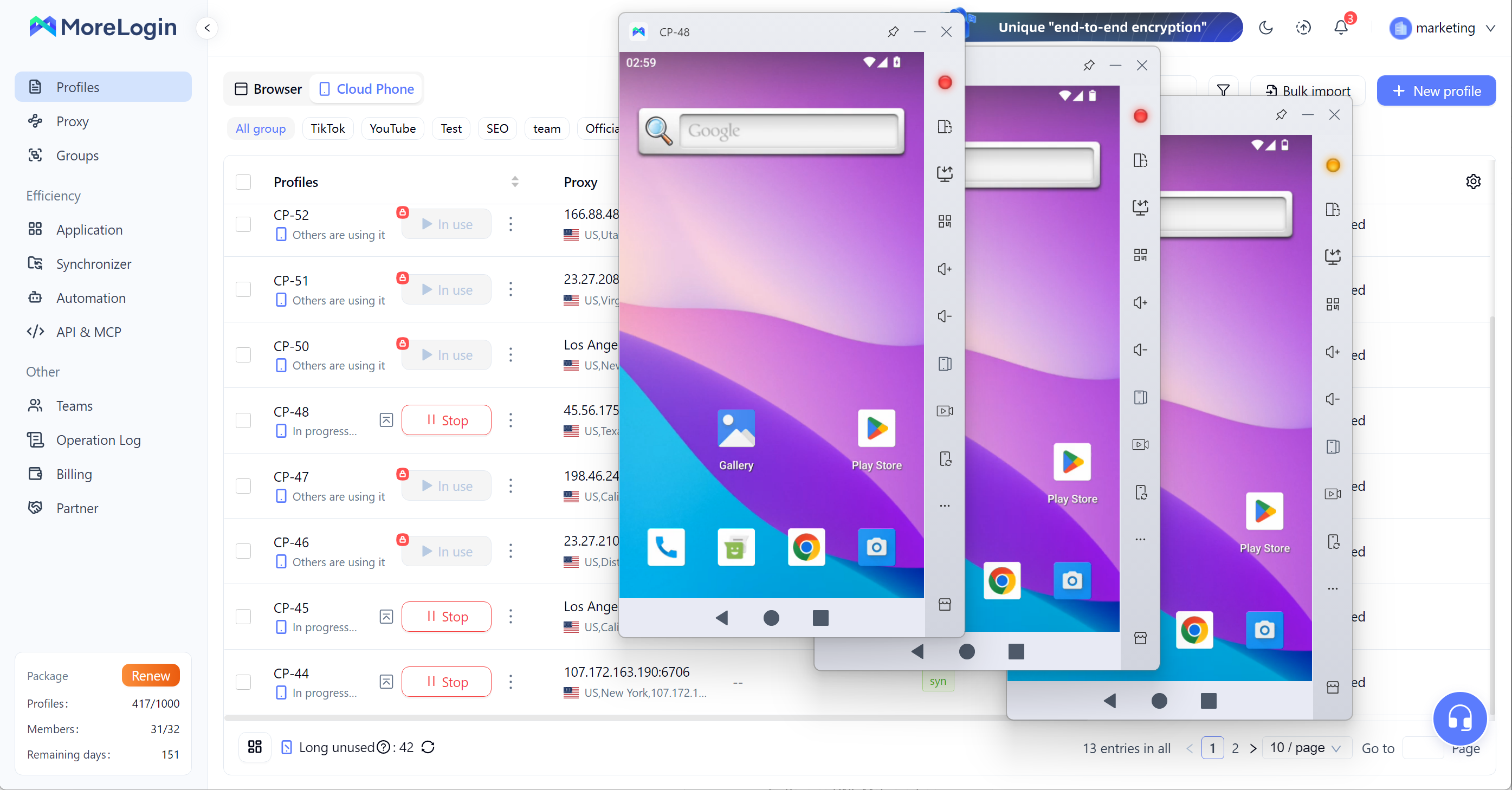
MoreLogin Cloud Phone is designed for cloud-based Android workflows. Instead of running every Android environment on one local computer, users can manage Android cloud phones through a centralized workspace.
This matters when users need persistent environments. A local emulator depends on the local computer. If the computer shuts down, disconnects, or becomes overloaded, the task is affected. With MoreLogin Cloud Phone, the Android environment is not tied to one local desktop session.
It also matters for multi-account workflows. Managing many local emulator windows can become messy. Users have to deal with local storage, resource pressure, window switching, environment resets, and unstable long sessions. MoreLogin Cloud Phone gives users a cleaner way to manage multiple mobile environments from the cloud.
MoreLogin Cloud Phone is more suitable when:
You need persistent Android environments.
You want to avoid local hardware bottlenecks.
You manage multiple mobile accounts.
You need cloud-based automation.
You need team members to access mobile environments remotely.
You want mobile workflows to continue without depending on one PC.
You need a more organized way to scale Android operations.
For users moving beyond local testing, MoreLogin Cloud Phone is a better fit for long-term mobile operations, multi-account management, and automation-ready cloud environments.
A simple rule works here: use an emulator to test; use MoreLogin Cloud Phone when the workflow needs to run, persist, and scale.
What is an Android Emulator? It is a local virtual Android environment that lets users run Android apps on a computer. It is still useful for development, debugging, app testing, mobile game access, and short-term Android workflows.
But it has clear limits. It depends on local hardware, becomes heavier with modern apps, struggles with multiple instances, and cannot fully reproduce real mobile behavior.
For small-scale testing, an Android emulator is still worth using. For long-term mobile operations, multi-account workflows, team access, and cloud automation, MoreLogin Cloud Phone is the more practical direction.
An Android emulator is software that creates a virtual Android device on a computer. It lets users run Android apps without using a physical Android phone.
An Android emulator works by creating a virtual Android system that uses the computer’s CPU, RAM, storage, graphics, and network connection. Hardware acceleration can improve speed when the host computer supports it.
No. An emulator can imitate Android software and some hardware behavior, but it is not a real phone. Battery behavior, sensors, camera, network conditions, and device-specific signals may differ.
An emulator may be slow because it uses local computer resources. Weak CPU performance, limited RAM, slow storage, disabled VT, or too many running instances can all reduce performance.
You can use an emulator for light multi-account testing, but it is not ideal for long-term multi-account operations. Multiple instances consume local resources and can become unstable.
An Android emulator runs locally on a computer. A Cloud Phone runs in a cloud-based Android environment. Emulators are better for local testing, while Cloud Phones are better for persistent and scalable mobile workflows.
What Is a Browser Fingerprint? Meaning, Risks, and Protection Tips
Next
 EN
EN